You can create an online assignment that allows students to submit a file that they first annotate using the Quercus DocViewer annotation tools. To create a student annotation assignment in Canvas, an instructor creates an assignment, sets the submission type to 'Online', and selects 'Student Annotation'. The instructor then uploads a file (like a PDF) that students will mark up with built-in tools. Students can access the assignment via Canvas, annotate the file directly on screen, and submit their work for instructor grading.
Instructions for Creating an Annotation Assignment
To create an Annotation Assignment you will need to select the Student Annotation option when creating an Online Assignment in Quercus.
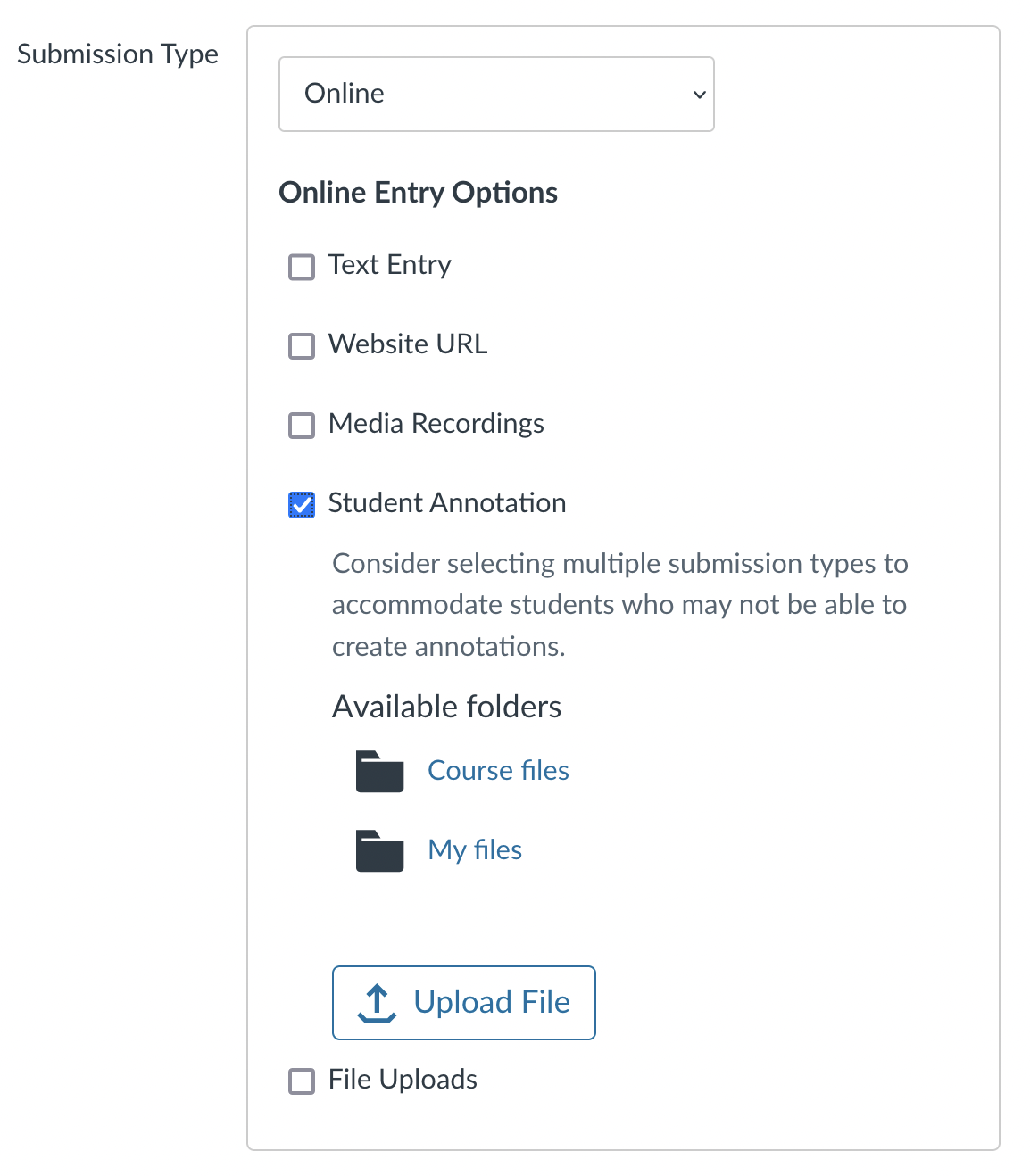
Additional information on creating an Annotation Assignment in Quercus can be found under the Select Online Entry Options" section on the Canvas Community - How do I create an online assignment? page found at the link provided below.
https://community.canvaslms.com/t5/Instructor-Guide/How-do-I-create-an-online-assignment/ta-p/950
Students can access Annotation Assignments from the Assignment section in the Quercus course. Instructions for students completing annotation Assignments can be found at the link below.
https://library.utm.utoronto.ca/students/canvas/submitting-assignments#annotation-assignment
NOTE: For instructions on how to create a Quercus Hypothes.is Integrated Assignment, please review the instructions below.
Quercus Hypothes.is Integrated Assignment:
https://teaching.utoronto.ca/tool-guides/hypothesis/